

How To Create Deep Link For Android App
A Guide to Deep Links in Android
What are they, and how can we use them well?


Every app in the Play Store that's reached a certain level in terms of user base wants the users to return to the app on a daily or monthly basis.
This is known as retention rate, which is a crucial factor for apps to raise funds or to do some other things, depending on their requirements.
So basically they send unnecessary notifications or messages to gain the retention of attention of users. Deep links are one important aspect, making the user go to a particular destination rather than the usual navigation flow.
Deep linking on Android drives better user experiences. In this article, let's explore deep links and how we can implement them in Android apps. Before diving into implementation, it's important to understand basic things like what they are and why we need them.
What's a Deep Link?
Deep links are similar to the links or URLs we use on a daily basis. Each link or URL is used to navigate a user to some specific destination. For example, let's have a look at the following URL:
https://www.example.com/classes?lecture=10 The above link was an URL that navigates you to the classes page in the example.com domain, rather than the domain home page.
So in these terms, an Android deep link is a kind of URL that'll navigate the user to a specific destination inside the app. In Android, we add intent filters to define the URL to a particular page, and we extract the data from incoming intents to drive users to the right activity.
In simple terms, Android deep links are nothing but the URLs that'll navigate the user to particular content or a particular page of the application.
The Building Blocks of Deep Links
URLs are the format used to define a web endpoint. For Android, we need to break the URL into pieces to tell the system to handle the particular thing. Let's check a sample URL in Android terms:
https://www.sample.com/profile?id=1&name=pavan -
httpsis a scheme -
www.sample.comis a host -
/profileis a path used to identify the specific page or content -
?id=1&name=pavanare the query params which we extract using intents
The above things, like host, scheme, path, query params, are all the things required to build a deep link in Android.
Understanding Deep Links
When a user clicks on a deep link, the Android system tries each of the actions, in sequential order, until the request succeeds:
- Open the user's preferred app that can handle the URI, if one is designated.
- Open the only available app that can handle the URI.
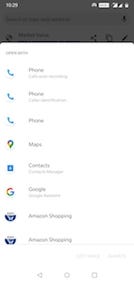
- Allow the user to select an app from a dialog of options as below
How to Handle Intent Filters
An intent filter is an expression in an app's manifest file that specifies the type of intents that the component would like to receive. Set up an <intent-filter> in the manifest file as an entry point.
- Define the action as
ACTION_VIEWfor the intent so the intent filter can be reached by a Google search.
<action android:name="android.intent.action.VIEW" /> 2. Include the BROWSABLE category in order for it to be accessible from a web browser for the intent filter. Without it, clicking a link in a browser can't resolve to your app.
Also, include the DEFAULT category, which allows your app to respond to implicit intents. Without this, the activity can be started only if the intent specifies your app component name.
            <category              android:name="android.intent.category.DEFAULT" />
<category              android:name="android.intent.category.BROWSABLE" />
3. Include a data tag for the intent filter. This data tag has host, scheme, path, and query params to identify the link.
There can be multiple data tags.
The data tag for the URL example://app/profile will be as follows:
            <data
              android:host="app"
              android:pathPrefix="/profile"
              android:scheme="example" />
Note: Set android:launchMode="singleTask" for the target Activity to avoid launching multiple instances of the activity at the same time.
Let's Create a Deep Link
To construct a deep link, add all of the things in the above step together. The following XML snippet shows how to specify an intent filter in the manifest for deep linking.
The URIs "app://sample/profile" and "https://www.sample.com/profile" both resolve to an activity.
We can use a single intent filter with multiple data tags, but it's a good procedure to add multiple intent filters for different URIs.
            <intent-filter>
              ...
              <data android:scheme="https" android:host="www.example.com" />
              <data android:scheme="app" android:host="open.my.app" />
</intent-filter>
It might seem as though this supports only https://www.example.com and app://open.my.app. However, it actually supports those two plus these: app://www.example.com and https://open.my.app.
Once we've added intent filters with URIs for activity content to your app manifest, Android is able to route any Intent that has the matching URIs to your app at runtime.
Read Data From Incoming Intents
Once the system starts our activity through an intent filter, we can use data provided by the intent to determine what we need to render. Call the getData() and getAction() methods to retrieve the data and action associated with the incoming intent
As id is the mandatory parameter if the intent doesn't contain the data, we're closing the activity instance by calling finish(). The logic depends on the requirement.
How to Test Deep Links
We can use Android Debug Bridge (adb) shell commands to check if the deep links flow, like whether the deep link is navigating to the correct page or not.
adb shell am start -a android.intent.action.VIEW -d "URI_SCHEME" package-name With the above command, by replacing URI_SCHEME with the defined URL and package-name with the application package name, we can test our implementation. The command for the above profile page would be:
adb shell am start -a android.intent.action.VIEW -d "app://sample/profile?id=1" com.sample However, package-name is an optional attribute. To eliminate the ambiguity among different apps having the same URI, we define the package-name.
Best Practices
- You need to have a separate deep-link activity to handle all cases in which a login required, onboarding is completed, etc. Isolating the entry point would give the flexibility to handle things and provide cleaner code to maintain.
- It's better to validate and render the page content because as the destination page is one of the hidden things, there may be security issues. It'd be better to have validation before rendering the page
- If the app has login or onboarding functionality, it's better to have a redirection helper function to maintain the navigation. For example, if the user clicks on a link and enters the app assume, he wasn't logged in. Also assume the content he's trying to access needs the login validation. First, we store the destination details in a redirection function and show the login page, and after validation, using the redirection function, we need to redirect the user to correct destination.
How To Create Deep Link For Android App
Source: https://betterprogramming.pub/android-guide-for-app-deeplinks-aa5fb0e1514e
Posted by: stormplacrour.blogspot.com
0 Response to "How To Create Deep Link For Android App"
Post a Comment